
testlog Logo testlog Contact Us
Contact Us

Getting Started with Your Smartphone — The Basics

You'll learn what all those buttons do, how to charge it properly, and the three things you absolutely need to know before you start.

12 min read Beginner May 2026
Senior woman wearing glasses looking at smartphone screen with clear interface, hands visible, warm indoor lighting, close-up view

Why Your Smartphone Isn't as Complicated as It Looks

Smartphones can feel intimidating when you're starting out. There's the screen, the buttons, all those apps, and honestly it's a lot to take in at once. But here's the thing — you don't need to know everything. You just need to know the essentials, and you'll be surprised how quickly it all clicks into place.

In this guide, we're going to walk through the basics without any jargon or confusing technical terms. We'll show you the physical parts of the phone, how to handle it safely, and the core functions you'll use every single day. By the end, you'll feel confident picking up your phone and using it without worry.

The Physical Parts — What's What

Every smartphone has the same basic components, though they're positioned slightly differently depending on the brand. Let's go through the ones that matter most.

The Screen (Display)

This is the main part you'll look at and touch. It's sensitive to your finger, so it responds when you tap, swipe, or hold. Don't worry about damaging it with normal use — it's tougher than you'd think.

On the sides of your phone, you'll find buttons. There's usually a power button (to turn the phone on and off), and volume buttons (to make sounds louder or quieter). The power button is typically on the right side or the back. Don't be afraid to press these — they're designed for regular use.

At the bottom, you'll find a charging port. This is where the charger cable connects. Most modern phones use USB-C, which is a small rectangular connector. Keep this port clean and dry. If you see lint inside, gently brush it out with a dry cloth — never use water or metal.


Close-up of smartphone showing physical buttons, charging port, and screen display with labeled parts visible, clean background, bright lighting
Senior hands holding smartphone correctly with proper grip, comfortable position, natural indoor lighting, clear view of finger positioning on screen

Holding and Caring for Your Phone

How to Hold It Safely

Hold your phone in a comfortable grip — usually with your fingers supporting the back and sides. You don't need to grip it tightly. A relaxed grip is actually better because it's less tiring and you're less likely to drop it accidentally.

Keep the screen facing toward you so you can see what you're doing. When you're not using it, don't leave it on hot surfaces like a car dashboard in summer, and avoid getting it wet. Most phones today are water-resistant but not waterproof — there's a difference.

Clean the screen regularly with a soft, dry cloth. If you're outside in sunlight and having trouble seeing the screen, it's not broken — it's just the brightness. You can adjust it in the settings. Speaking of which, let's talk about actually using the thing.

Charging Your Phone the Right Way

You don't need to be an expert about charging, but a few simple habits will keep your phone working well for years.

The Basics of Battery Care

Don't wait until the battery is completely dead to charge. It's actually better to charge when it reaches 20% battery. And you don't need to wait until it's at 100% before unplugging — you can unplug anytime, even at 80%.

Charge your phone overnight if that works for your routine. Modern phones are smart enough not to overcharge, so leaving it plugged in overnight won't damage it. Use the charger that came with your phone, or a certified replacement — cheap knockoff chargers can cause problems.

If your phone gets hot while charging, unplug it immediately and let it cool down. A little warmth is normal, but if it's too hot to touch, something's wrong. Remove it from any case and let it breathe. These simple habits will keep your battery healthy for years.

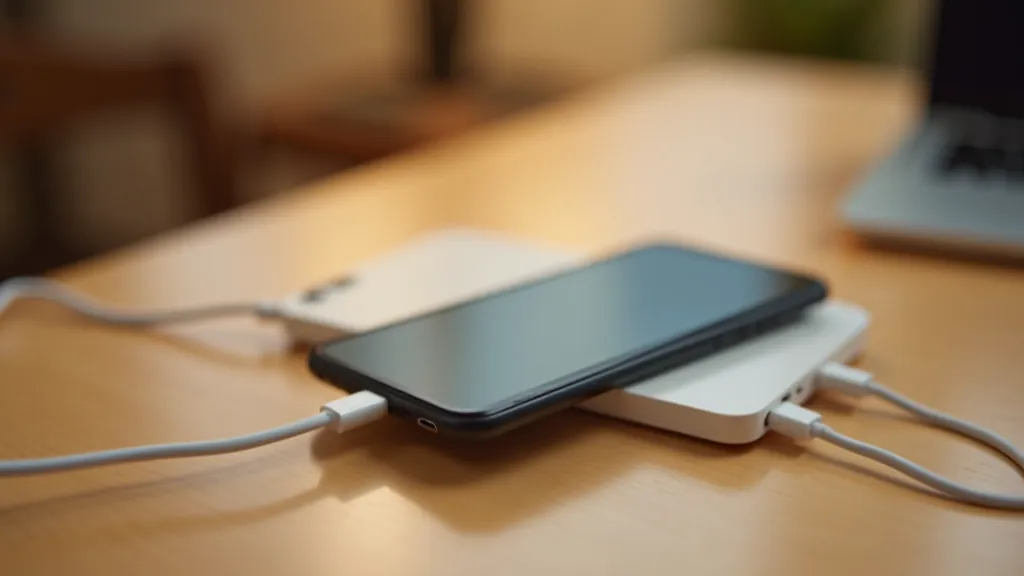
Smartphone connected to charging cable on wooden table, proper charging setup with wall adapter visible, warm natural lighting, clean composition
Smartphone screen showing home screen with apps clearly visible, finger pointing at app icon, bright screen display, close-up view with good visibility

Understanding the Home Screen and Apps

When you turn on your phone, you'll see the home screen. This is where all your apps live. Apps are small programs that do specific things — like make phone calls, send messages, take photos, or browse the internet.

Apps You'll Use Most

Phone app — makes calls. Messages app — sends text messages. Camera app — takes photos and videos. Contacts — stores phone numbers. Settings — controls everything about your phone. That's really all you need to start.

To open an app, you just tap it once. To close an app, you swipe up from the bottom (on newer phones) or press the back button (on some Android phones). Don't worry about accidentally breaking something by tapping — you really can't hurt it just by touching the screen.

You're Ready to Begin

That's the core of it. You've learned the physical parts, how to care for your phone, charging basics, and how to navigate the home screen. It's not overwhelming when you break it down into simple pieces like this.

The best way to learn is to actually use your phone. Don't be afraid to explore. You won't accidentally break it by tapping things. Take it slow, practice one thing at a time, and you'll be surprised how quickly it becomes second nature. In a few weeks, you'll wonder why it seemed so complicated at first.

Síle O'Donnell

Síle O'Donnell

Senior Digital Literacy Specialist

Senior Digital Literacy Specialist with 14 years' experience training seniors in smartphone use and online safety across Ireland.

About This Guide

This guide is intended for educational purposes to help you understand the basic functionality of smartphones. While the information is accurate and up-to-date, individual phone models may vary slightly in design and features. If you're having technical difficulties with your specific phone, we recommend consulting the manufacturer's manual or contacting your phone provider's customer support. This content is informational and not a substitute for professional technical support.